

Overview
You’ll need two separate accounts — one for billing and one for managing your game server.Billing Portal
Manage purchases, subscriptions, invoices, and support tickets.
Game Panel
Start/stop servers, edit files, add sub-users, and monitor performance.
Billing Account
The billing account is your first step — it’s required to purchase any server plan and access support.Step 1 — Visit the Billing Portal
Head to the Core Host billing panel and click Register to begin.Open Billing Portal →
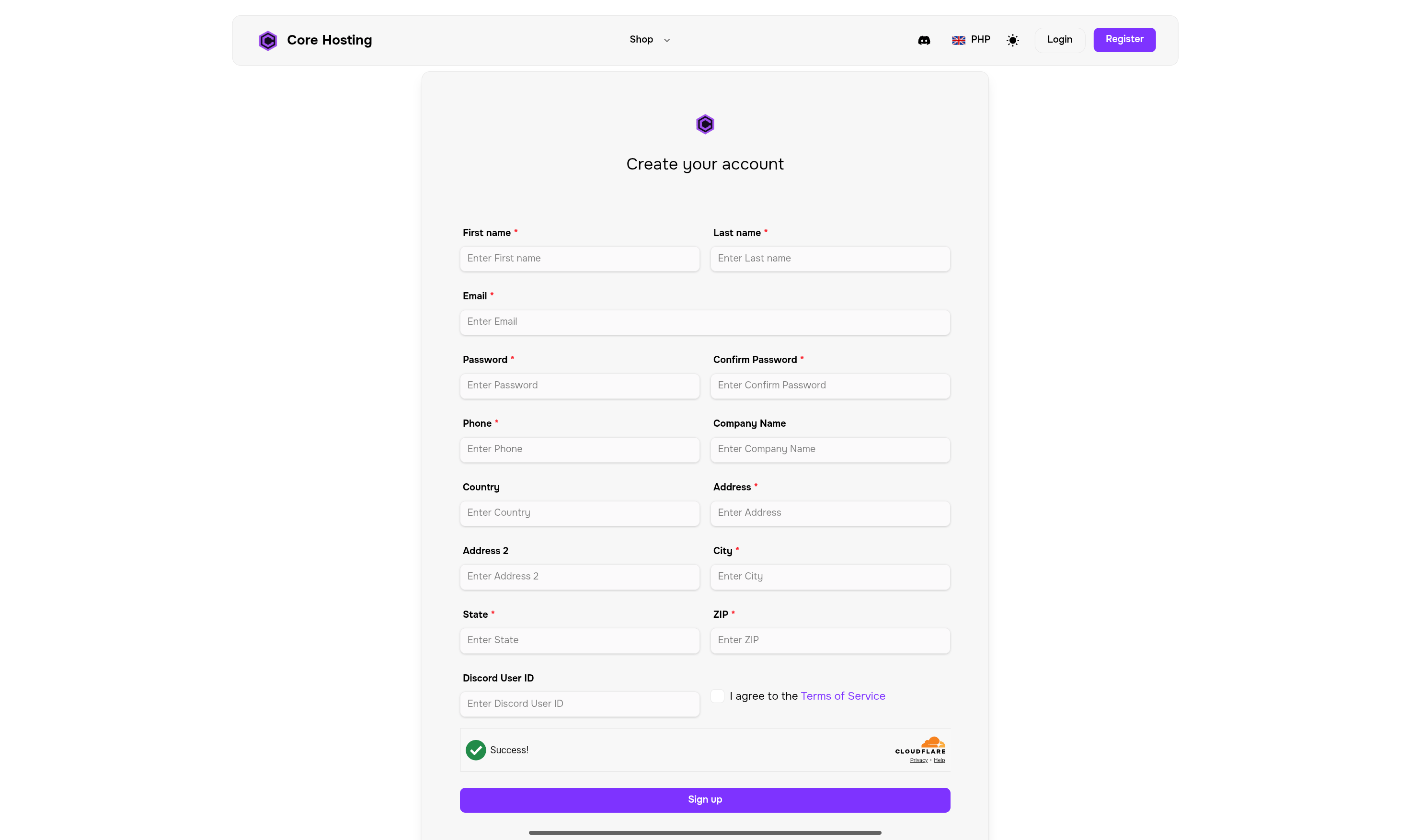
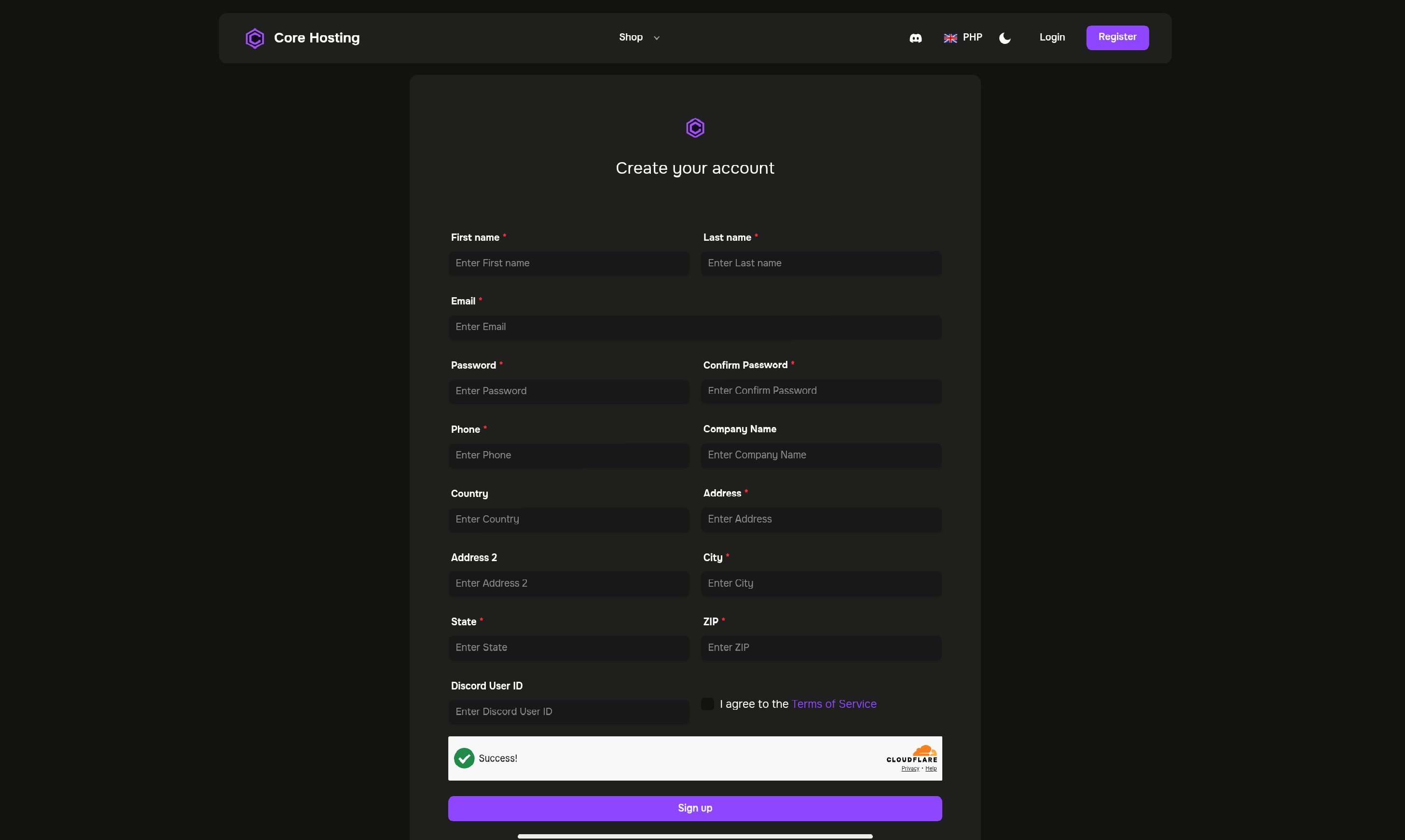
Step 2 — Fill in the Registration Form
1
Enter your personal details
Complete all required fields in the registration form:
- Full Name — Your first and last name
- Email Address — A valid, accessible email
- Phone Number — Used for account verification
- Address — Required for billing purposes
- Password — Choose a strong, unique password
- Confirm Password — Re-enter your password to confirm
Your Discord ID is optional, but recommended if you’d like faster support through our Discord server.
2
Accept the Terms of Service
Read and accept the Core Host Terms of Service and Privacy Policy before proceeding.
3
Submit your registration
Click Sign Up to create your account. You’ll receive a verification email shortly.
Step 3 — Verify Your Email
Email verification is required to activate your account and unlock full access.1
Check your inbox
Look for an email from Core Host with the subject line “Please verify your email address”. It typically arrives within 1–2 minutes.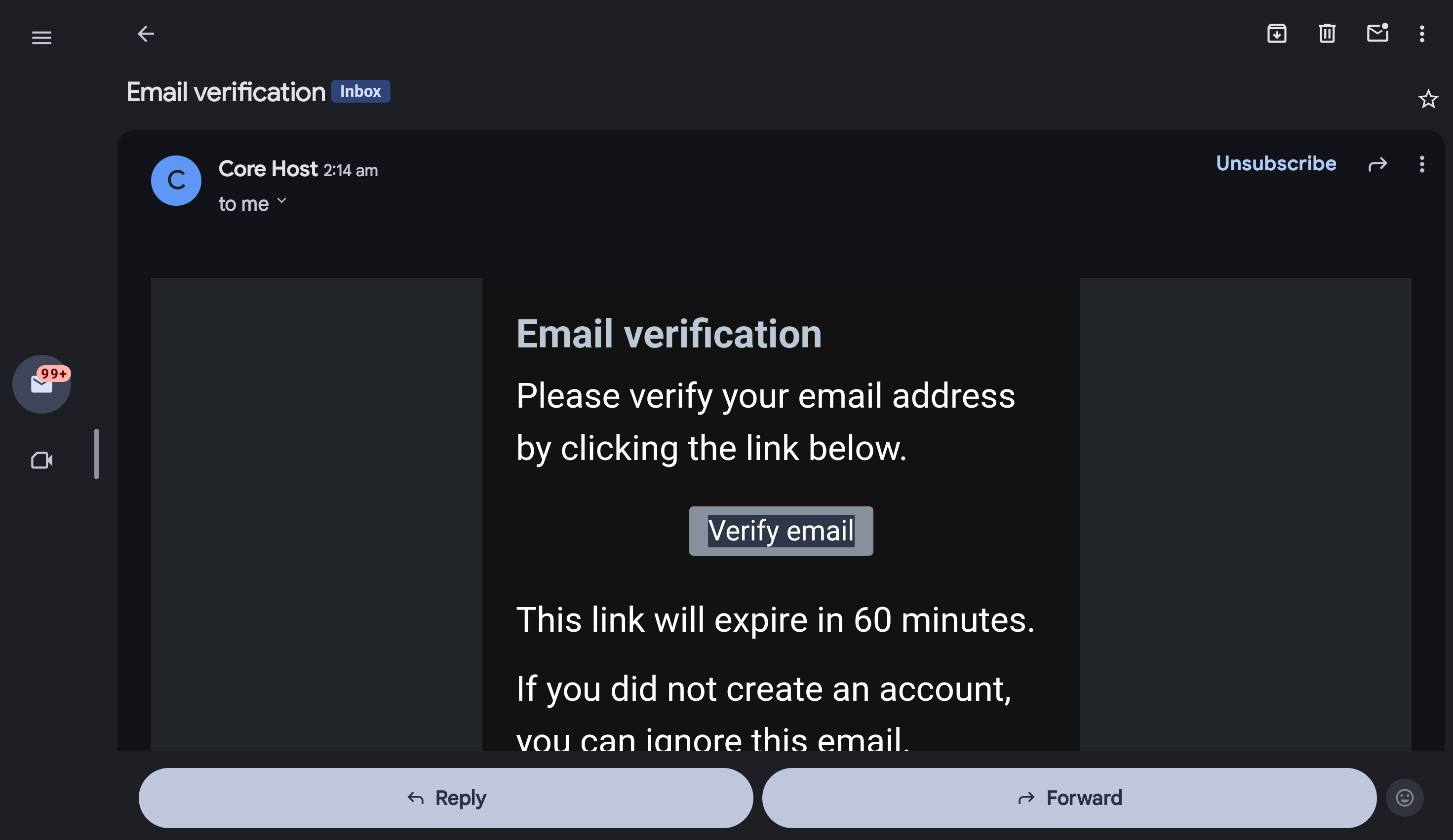
2
Open the email
Inside, you’ll find a verification button or link to activate your account.
3
Click the verification link
Clicking the link confirms your email and unlocks full access to the billing portal.
Haven’t received the email after 5 minutes? Check your Spam or Junk folder, or request a new verification email from the login page.
Step 4 — Log In
Once verified, visit the billing portal and sign in with your credentials. You’re now ready to purchase a server, manage your subscription, and submit support tickets.Your billing account is active and ready to use.
Game Panel Account
The game panel — powered by Pterodactyl — is where you’ll manage your server’s technical settings, files, and configurations.Game panel accounts are created automatically when you purchase a server. You cannot manually register before making a purchase.
How It Works
1
Purchase a server plan
Order a game server through the billing portal. Your game panel account will be provisioned automatically.
2
Receive your credentials
After purchase, you’ll receive an email containing:
- Your game panel login URL
- Your username (typically your email)
- Instructions to set your password
3
Access your game panel
Follow the instructions in the email to log in and start managing your server.
Ready to Purchase?
How to Buy a Server
Step-by-step guide to placing your first server order.
Access Game Panel
Already have credentials? Log in to your game panel.
Quick Reference
Billing Portal
Manage subscriptions, invoices, and support tickets.
Game Panel
Control your server, manage files, and configurations.
Purchase a Server
Buy your first game server and get started today.
Support Center
Our team is available 24/7 to help with any issues.
Frequently Asked Questions
Why do I need two separate accounts?
Why do I need two separate accounts?
The billing account handles payments and subscriptions, while the game panel account gives you technical control over your servers. Separating these systems improves security and allows for better access management — for example, you can add sub-users to your game panel without giving them billing access.
I didn't receive the verification email. What should I do?
I didn't receive the verification email. What should I do?
First, check your Spam or Junk folder. If it’s not there, wait 5 minutes and request a new verification email from the billing panel login page. Still having issues? Contact our support team.
Can I create a game panel account before purchasing?
Can I create a game panel account before purchasing?
No — game panel accounts are generated automatically when you purchase a server. This ensures your panel access is properly linked to your active services.
I forgot my password. How do I reset it?
I forgot my password. How do I reset it?
Click the Forgot Password link on either the billing panel or game panel login page. You’ll receive a password reset email with further instructions.
Can I use the same password for both accounts?
Can I use the same password for both accounts?
While technically possible, we strongly recommend using different passwords for each platform. A password manager makes this easy to maintain without having to remember multiple credentials.
Still Need Help?
Contact Support
Our support team is available 24/7. Reach out for help with account creation, login issues, or anything else.