> ## Documentation Index
> Fetch the complete documentation index at: https://docs.corehost.store/llms.txt
> Use this file to discover all available pages before exploring further.
# Account Creation
> Set up your Core Host billing and game panel accounts to get started.
## Overview
To get the most out of Core Host, you'll need two separate accounts — one for billing and one for managing your game server.
Manage purchases, subscriptions, invoices, and support tickets.
Start/stop servers, edit files, add sub-users, and monitor performance.
These are **two separate accounts** with separate logins. You must register on billing portal only.
***
## Billing Account
The billing account is your first step — it's required to purchase any server plan and access support.
### Step 1 — Visit the Billing Portal
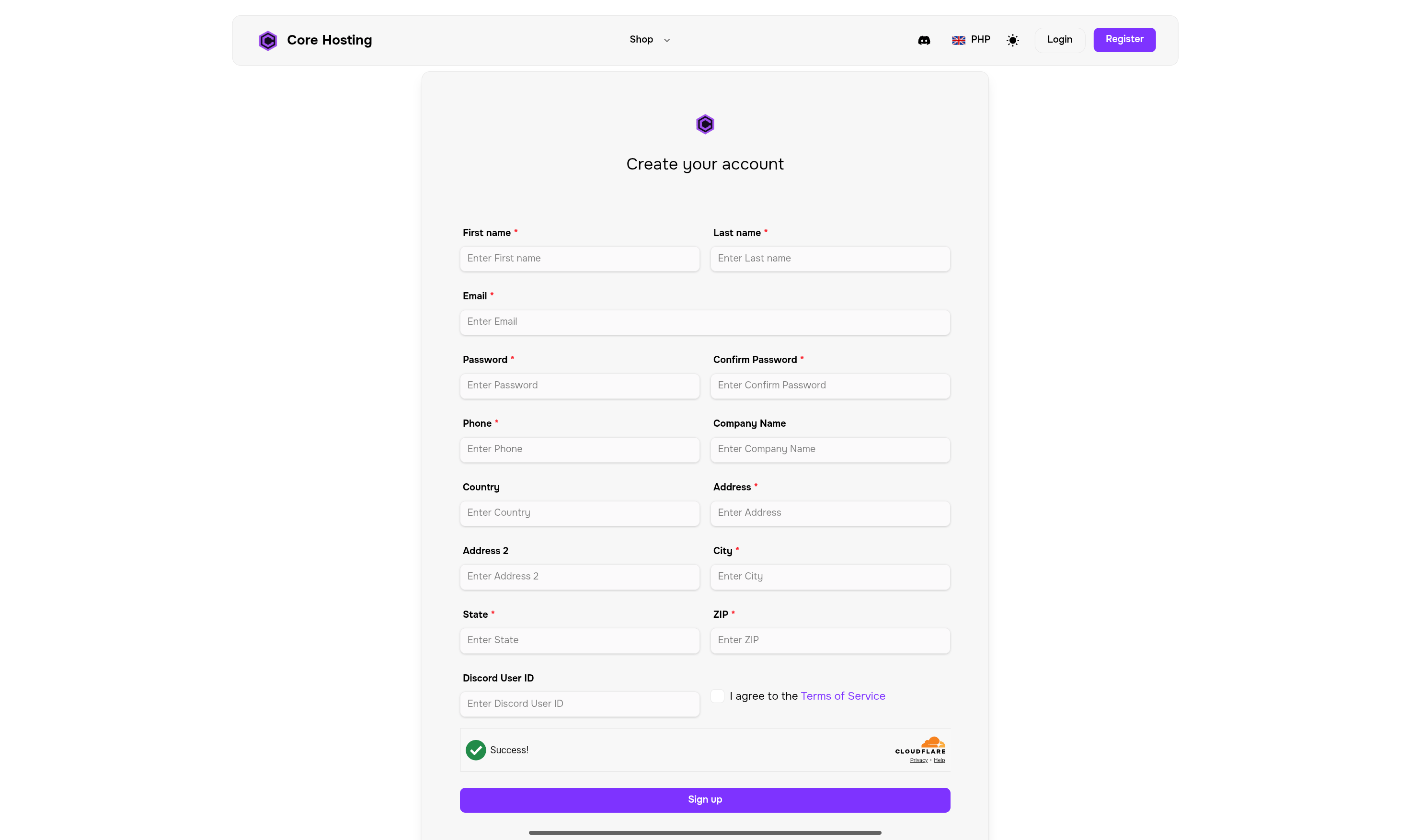
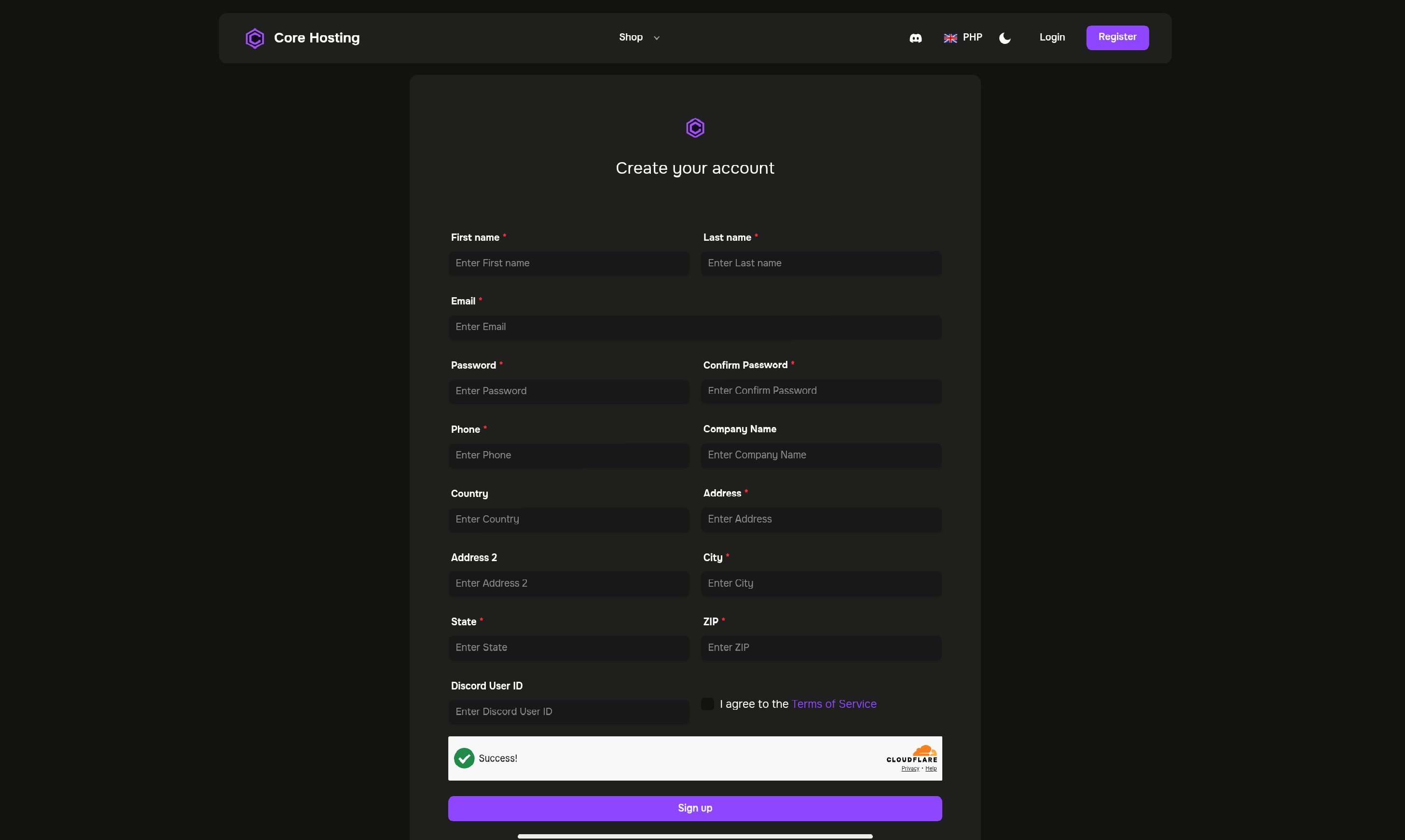
Head to the Core Host billing panel and click **Register** to begin.
 ***
### Step 2 — Fill in the Registration Form
Complete all required fields in the registration form:
* **Full Name** — Your first and last name
* **Email Address** — A valid, accessible email
* **Phone Number** — Used for account verification
* **Address** — Required for billing purposes
* **Password** — Choose a strong, unique password
* **Confirm Password** — Re-enter your password to confirm
Your Discord ID is optional, but recommended if you'd like faster support through our Discord server.
Read and accept the Core Host Terms of Service and Privacy Policy before proceeding.
Click **Sign Up** to create your account. You'll receive a verification email shortly.
Use a password with a mix of uppercase, lowercase, numbers, and symbols. Consider a password manager to keep your credentials secure.
***
### Step 3 — Verify Your Email
Email verification is required to activate your account and unlock full access.
Look for an email from **Core Host** with the subject line *"Please verify your email address"*. It typically arrives within 1–2 minutes.
***
### Step 2 — Fill in the Registration Form
Complete all required fields in the registration form:
* **Full Name** — Your first and last name
* **Email Address** — A valid, accessible email
* **Phone Number** — Used for account verification
* **Address** — Required for billing purposes
* **Password** — Choose a strong, unique password
* **Confirm Password** — Re-enter your password to confirm
Your Discord ID is optional, but recommended if you'd like faster support through our Discord server.
Read and accept the Core Host Terms of Service and Privacy Policy before proceeding.
Click **Sign Up** to create your account. You'll receive a verification email shortly.
Use a password with a mix of uppercase, lowercase, numbers, and symbols. Consider a password manager to keep your credentials secure.
***
### Step 3 — Verify Your Email
Email verification is required to activate your account and unlock full access.
Look for an email from **Core Host** with the subject line *"Please verify your email address"*. It typically arrives within 1–2 minutes.
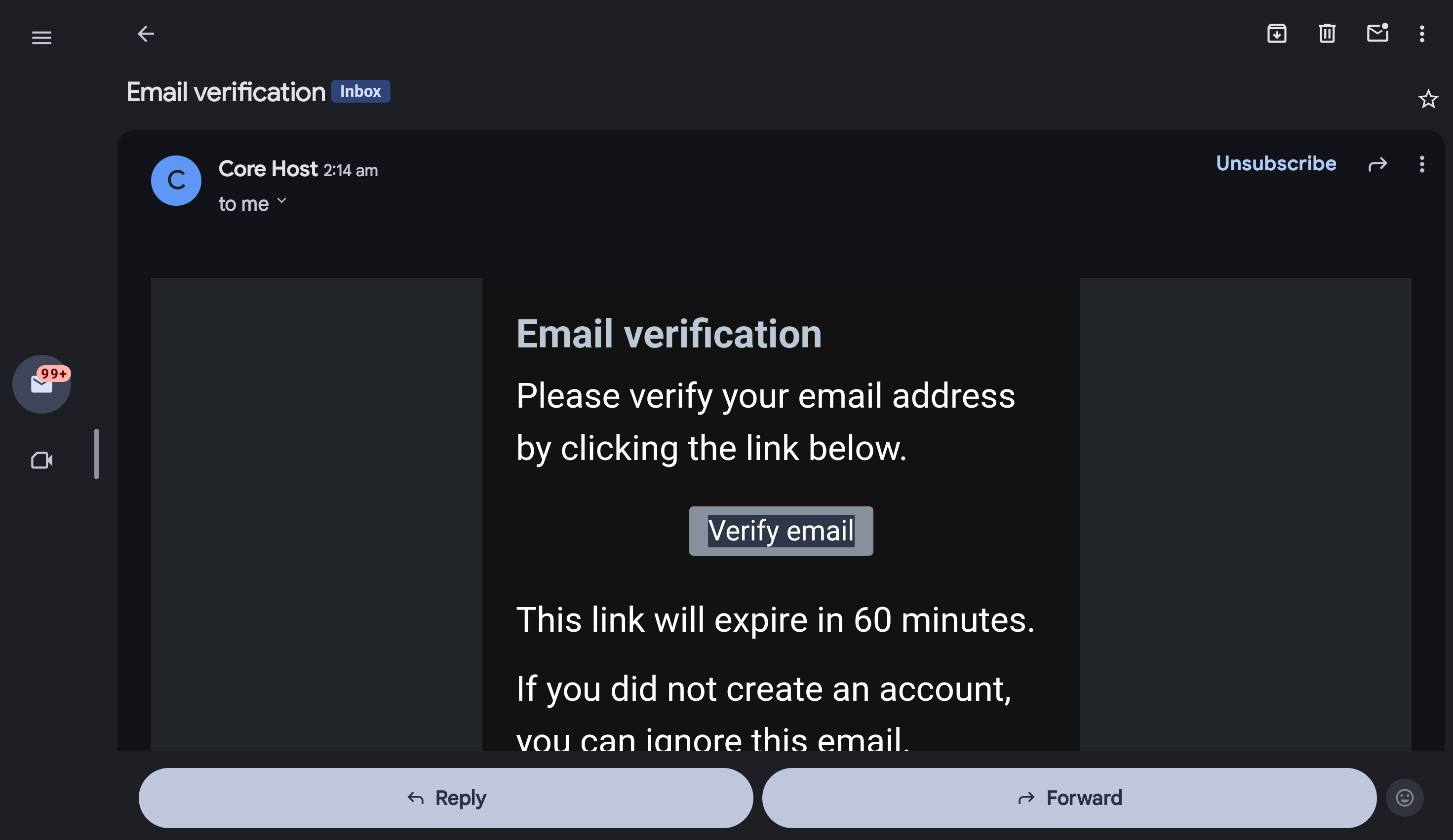
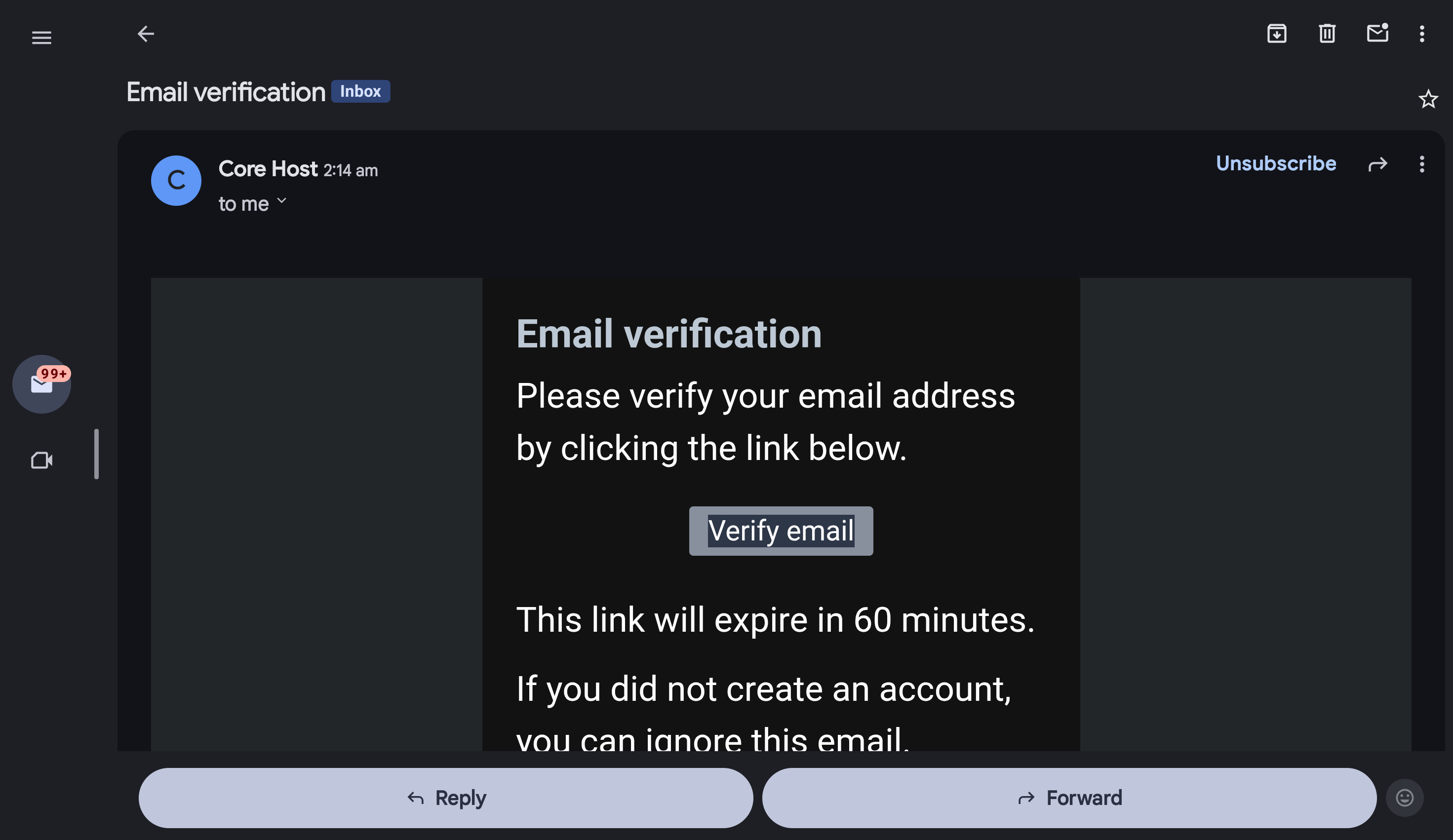 Inside, you'll find a verification button or link to activate your account.
Clicking the link confirms your email and unlocks full access to the billing portal.
Haven't received the email after 5 minutes? Check your **Spam or Junk** folder, or request a new verification email from the login page.
***
### Step 4 — Log In
Once verified, visit the billing portal and sign in with your credentials. You're now ready to purchase a server, manage your subscription, and submit support tickets.
Your billing account is active and ready to use.
***
## Game Panel Account
The game panel — powered by [Pterodactyl](https://pterodactyl.io) — is where you'll manage your server's technical settings, files, and configurations.
Game panel accounts are **created automatically** when you purchase a server. You cannot manually register before making a purchase.
### How It Works
Order a game server through the billing portal. Your game panel account will be provisioned automatically.
After purchase, you'll receive an email containing:
* Your game panel login URL
* Your username (typically your email)
* Instructions to set your password
Follow the instructions in the email to log in and start managing your server.
If this is your first time purchasing from us, complete the billing account setup above **before** placing an order.
***
### Ready to Purchase?
Step-by-step guide to placing your first server order.
Already have credentials? Log in to your game panel.
Can't find your game panel credentials? Search your inbox for **"Core Hosting - Account created"** or reach out to our support team.
***
## Quick Reference
Manage subscriptions, invoices, and support tickets.
Control your server, manage files, and configurations.
Buy your first game server and get started today.
Our team is available 24/7 to help with any issues.
***
## Frequently Asked Questions
The billing account handles payments and subscriptions, while the game panel account gives you technical control over your servers. Separating these systems improves security and allows for better access management — for example, you can add sub-users to your game panel without giving them billing access.
First, check your **Spam or Junk** folder. If it's not there, wait 5 minutes and request a new verification email from the billing panel login page. Still having issues? [Contact our support team](/support).
No — game panel accounts are generated automatically when you purchase a server. This ensures your panel access is properly linked to your active services.
Click the **Forgot Password** link on either the billing panel or game panel login page. You'll receive a password reset email with further instructions.
While technically possible, we strongly recommend using **different passwords** for each platform. A password manager makes this easy to maintain without having to remember multiple credentials.
***
## Still Need Help?
Our support team is available 24/7. Reach out for help with account creation, login issues, or anything else.
Inside, you'll find a verification button or link to activate your account.
Clicking the link confirms your email and unlocks full access to the billing portal.
Haven't received the email after 5 minutes? Check your **Spam or Junk** folder, or request a new verification email from the login page.
***
### Step 4 — Log In
Once verified, visit the billing portal and sign in with your credentials. You're now ready to purchase a server, manage your subscription, and submit support tickets.
Your billing account is active and ready to use.
***
## Game Panel Account
The game panel — powered by [Pterodactyl](https://pterodactyl.io) — is where you'll manage your server's technical settings, files, and configurations.
Game panel accounts are **created automatically** when you purchase a server. You cannot manually register before making a purchase.
### How It Works
Order a game server through the billing portal. Your game panel account will be provisioned automatically.
After purchase, you'll receive an email containing:
* Your game panel login URL
* Your username (typically your email)
* Instructions to set your password
Follow the instructions in the email to log in and start managing your server.
If this is your first time purchasing from us, complete the billing account setup above **before** placing an order.
***
### Ready to Purchase?
Step-by-step guide to placing your first server order.
Already have credentials? Log in to your game panel.
Can't find your game panel credentials? Search your inbox for **"Core Hosting - Account created"** or reach out to our support team.
***
## Quick Reference
Manage subscriptions, invoices, and support tickets.
Control your server, manage files, and configurations.
Buy your first game server and get started today.
Our team is available 24/7 to help with any issues.
***
## Frequently Asked Questions
The billing account handles payments and subscriptions, while the game panel account gives you technical control over your servers. Separating these systems improves security and allows for better access management — for example, you can add sub-users to your game panel without giving them billing access.
First, check your **Spam or Junk** folder. If it's not there, wait 5 minutes and request a new verification email from the billing panel login page. Still having issues? [Contact our support team](/support).
No — game panel accounts are generated automatically when you purchase a server. This ensures your panel access is properly linked to your active services.
Click the **Forgot Password** link on either the billing panel or game panel login page. You'll receive a password reset email with further instructions.
While technically possible, we strongly recommend using **different passwords** for each platform. A password manager makes this easy to maintain without having to remember multiple credentials.
***
## Still Need Help?
Our support team is available 24/7. Reach out for help with account creation, login issues, or anything else.